 Lifely
 Lifely guide
Add photos, places and music to an event
Open an event to add photos, a place or a song to the memory. Photos appear in the event and the Gallery; places appear on the Locations map; songs appear in Music. Available fields and access prompts vary by platform. Adding a place is available in the mobile app, not the browser.
Start with an existing entry or create an event. You can add context later; a photo or song is not required to record a memory. A lock or access prompt tells you what is available for your account. Photos require Premium; places and music may offer a rewarded-ad option on mobile or require Premium. Follow the current prompt in your app.
Add, view and remove photos
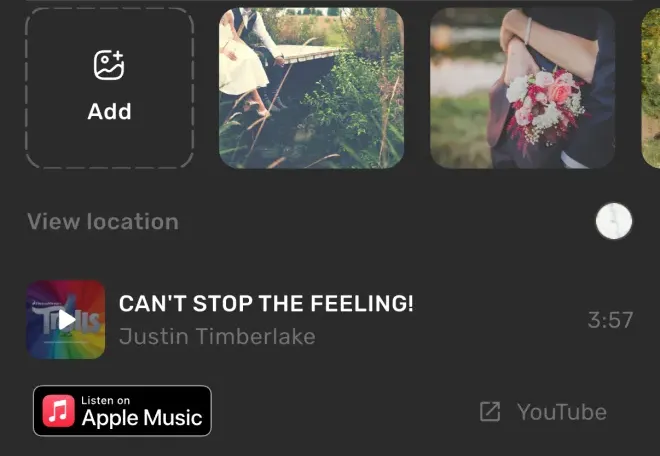
- Open the event. Find its photo field. With no photos yet, choose Add photo; an existing photo strip has an Add tile.
- Choose the source. On mobile, select your photo library or camera. Allow the relevant permission if asked. In the browser, choose images using the file picker.
- Select the images and wait for them to appear. The app shows the current per-event limit. On mobile, selected photo data is saved locally before uploading; in the browser, adding a photo uploads it directly and needs an internet connection.
- Open a photo. Select its thumbnail to view it larger. Move between photos in the viewer. In the event's thumbnail strip, press and hold a photo and drag to change the order.
- Remove a photo when needed. Open it, choose the delete control and confirm Delete photo. This removes that attachment from the event; it does not delete the event.
The photo viewer offers a download control when saving is available. On mobile, it saves through the phone's gallery flow and may need permission. In the browser, saving uses the browser's download flow. Check that saving succeeded before relying on the downloaded copy.
Add or change a place on mobile
- Choose Add location in the event. Complete the access prompt if one appears.
- Find the place. Use Search for location or move the map to the right position. You can use the current-location control if you want your present position; allow location permission for that option.
- Confirm the selected position with the check control. The place becomes part of the event.
- Revisit or correct it. Choose View location to open the map, then use its edit control to change the position. Use the delete control and confirmation to remove the place.
A place is a saved point on the map for that event, not continuous location tracking. Network access is needed for map tiles and place searches. Location is disabled in the web app, so add and manage places from your phone.
Attach a song and listen to a preview
- Choose Add music in the event. Follow the current access prompt, then search for a song or artist.
- Select the song you want to remember. Its title, artist and cover appear in the event.
- Listen when a preview is available. Select the cover's play control. Lifely plays a preview, not the full track. Use a displayed external listening link to open the full song in another service.
- Remove or replace it. Press and hold the song in the event to bring up its removal confirmation. Confirm removal, then choose Add music again to attach a different song.
Song search and previews need a connection, and availability can change with the music catalogue. Adding a song does not upload your own audio file or create an offline copy of the full track. External services may have their own sign-in and access requirements.
Browse attachments across your diary
Open Attachments from the home screen: compact layouts show a link beside the timeline; wide layouts use the side navigation. Where swiping between sections is available, swipe left from the timeline.
- Gallery
- Browse photos attached to your events. Open an item to see its associated event and choose Go to event to return to the timeline entry. The grouping control, where shown, switches photo grouping.
- Locations
- On mobile, browse event places on a map. Select a marker to inspect its event, then choose Go to event if you want the original timeline entry.
- Music
- Browse songs attached to events. Open a song's associated entry to revisit why you chose it. Playback inside Lifely remains a preview.
Give a trip its context
For an event called First evening in Porto, attach a street photo, the place where you had dinner and a song from the journey. Add a Travel tag if you want to group it with other trips. The attachments preserve context; the tag organizes related events.
If an attachment is missing or will not load
A place or music field is hidden
Check Profile → Settings → Event details for Location or Music fields you have turned off. Location remains unavailable in the browser even if you use it on mobile. Photos do not have a switch there: open the full event rather than a compact preview, and look for its photo strip or compact photo control.
A lock or access prompt appears
Photos require Premium. For places and music, use whichever rewarded-ad or Premium option your app currently offers. The browser does not offer rewarded ads or an in-browser purchase flow; manage Premium in the mobile app using the same Lifely account.
A photo will not add
Check photo-library or camera permission on your phone, or that the browser can read the selected file. Check the app's per-event limit. For web uploads, reconnect and wait for the thumbnail before leaving the event.
A song or map is blank while offline
Reconnect before searching for songs, playing previews or loading map tiles. A saved event can be available while one of its attachments still needs the network. Photos on one device may also still be waiting to upload or download; follow the sync guide before changing accounts or removing local data.
Use photos, places and music in the web app
At app.lifely.page, sign in with the same account as on your phone. You can attach photos with the browser's file picker when your account has access, and use music search and previews. Adding photos in the browser requires a connection. Location is disabled on the web.
The browser does not provide rewarded ads or a subscription purchase flow. If access is required, manage it in the mobile app. Do not assume that every phone attachment will be available offline in a browser.
Frequently asked questions
Are attachments required to create an event?
No. You can record an event without photos, a place or music and add them later.
Are photos, places and music all free?
Photos require Premium. Places and music may offer rewarded-ad access on mobile or require Premium. The app shows the current options; the browser does not offer rewarded ads or an in-browser purchase flow.
Can I add a place in the web app?
No. Location is disabled in the web app. Use the mobile app to add and manage event places.
Does Lifely play the full song?
No. Lifely plays a preview when one is available. Displayed external listening links open another service for the full track.
Does removing a photo delete the event?
No. Deleting a photo attachment removes it from that event. The event itself remains.
Do all attachments work offline?
No. Mobile photo data can be saved locally before upload, while web photo uploads need a connection. Map searches, map tiles, song search and previews also need the network, and uncached media may not be available offline.
Continue with your own diary
Lifely is a personal life timeline and diary for iPhone, iPad, Android phones and tablets, Macs with Apple silicon and the web. Start with one moment you want to keep, then use the guides when you want to add more context or explore your past.


Free download with in-app purchases and ads. Some features require Premium. Your local store and the app show current availability and prices.
Related guides: Create and edit events · Organize events with tags · Check account and sync