 Lifely
 Lifely guide
How to add an event or a past memory in Lifely
Tap + on the main screen, type a title, set the date and tap the check mark. The date can be any day in the past, long before you installed Lifely, or a day in the future. Only the title is required. Time, tags, people, importance and mood are optional, and you can add a description, photos, a place or a song after the event is saved.
You can create events in the iPhone app, the Android app and the Lifely web app, with the same account.
How to create an event
- Open the new event form. On a phone, tap the + button at the bottom right of the timeline. In the web app or on a tablet with a wide window, click Create event at the top of the side menu. Shortcut: tap a date on the date stripe, the column of years and months beside your events, and the new event starts on that day.
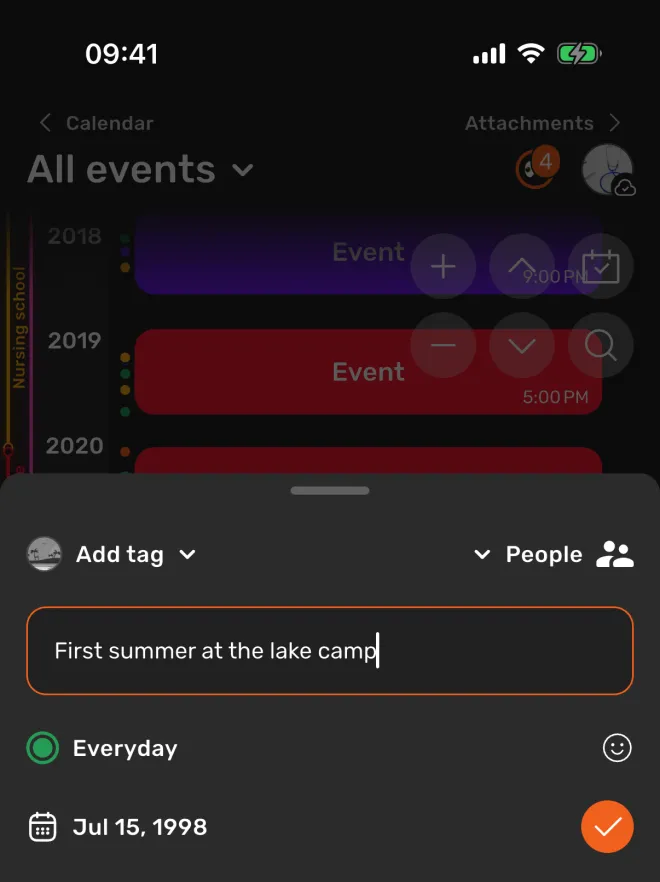
- Type a title. One line that you will recognise later, such as “Trip to Rome” or “Our first flat”. The check mark turns orange once there is a title.
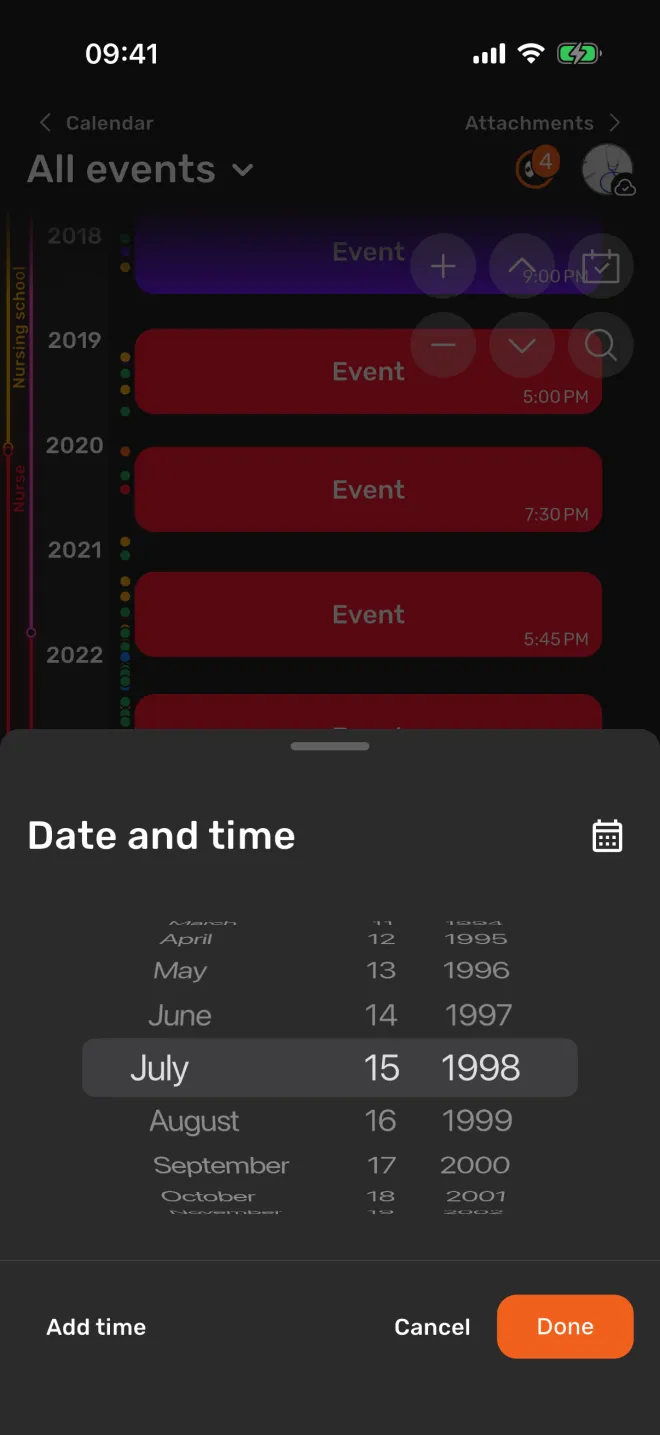
- Set the date. The form starts with today, or with the day you tapped. Tap the date to open Date and time, choose the day with the scroll wheel or the calendar (the button at the top right switches between them) and tap Done.
- Add a time if you know it. In the same sheet, tap Add time. Leave it out for a memory where only the day matters; Delete time removes a time you set.
- Add the optional details you want now. Tap Add tag or People at the top of the form, the importance (the coloured option) or the mood.
- Tap the check mark to save. On a keyboard, Return saves too. The event appears on your timeline at its date.
If you close the form after typing something, Lifely asks “Are you sure you want to exit without saving?” so you do not lose a half-written memory by accident.
What you can fill in
- Title
- Yes. A single line. The only thing you must type.
- Date
- Always set. Today by default, or the day you tapped on the date stripe. Any past day, or up to 100 years ahead.
- Time
- No. Add it with Add time. Without a time, the event belongs to the whole day.
- Importance
- Always set. The colour of the event. The form starts with the first importance in your list; tap it to choose another.
- Description, photos, place, music
- No. Added after saving, when you open the event. Some attachments, such as photos, can need Premium; the app shows what is available to you.
Tags, intervals, mood, location, music and memories can be turned off in Settings → Event details. A field that is turned off is not shown in the form.
Add a memory from before you used Lifely
Lifely is built for your whole life, so the date can be any day in the past: your first day at school, a trip twenty years ago, even a family story from before you were born. Set the date in step 3 above; the scroll wheel is the quickest way to go back many years.
Lifely has no separate “approximate date” setting: every event sits on one day. When you do not know the exact day:
- pick your best guess, such as the middle of the month or the season;
- leave the time empty;
- say that the date is approximate in the description, for example “Second half of July, exact day unknown”.
You can correct the date later, when you find a photo, a ticket or an old message. An event belongs to the intervals that cover its date, so moving the date also moves it between chapters of your life by itself.
If you have set your birthday in your profile, an open event shows how old you were on that day and how long ago it was, for example “You were 28”.
Example
Alex wants to keep a memory of a summer camp from childhood but only remembers that it was July 1998.
- Alex taps +, types “First summer at the lake camp” and sets the date to July 15, 1998, without a time.
- Alex adds the tag “Childhood” and the person “Sam”, the friend from the camp, then taps the check mark.
- Alex opens the event on the timeline and writes in the description: “Second half of July, exact day unknown. Sam and I built a raft that sank on the first try.”
- A year later Alex finds a postcard dated July 22, opens the event and changes the date. The change is saved by itself.
Future events
You can choose a date up to 100 years ahead, for a wedding you are planning, a trip you have booked or a letter to your future self. Until that day comes, the event appears on the timeline in grey, with a thin stripe in its importance colour, so plans stand apart from things that have already happened. Once the date has passed, the event is drawn in its importance colour like any other. The timeline always reaches a little past your latest event, so there is room to scroll ahead.
Add details after saving
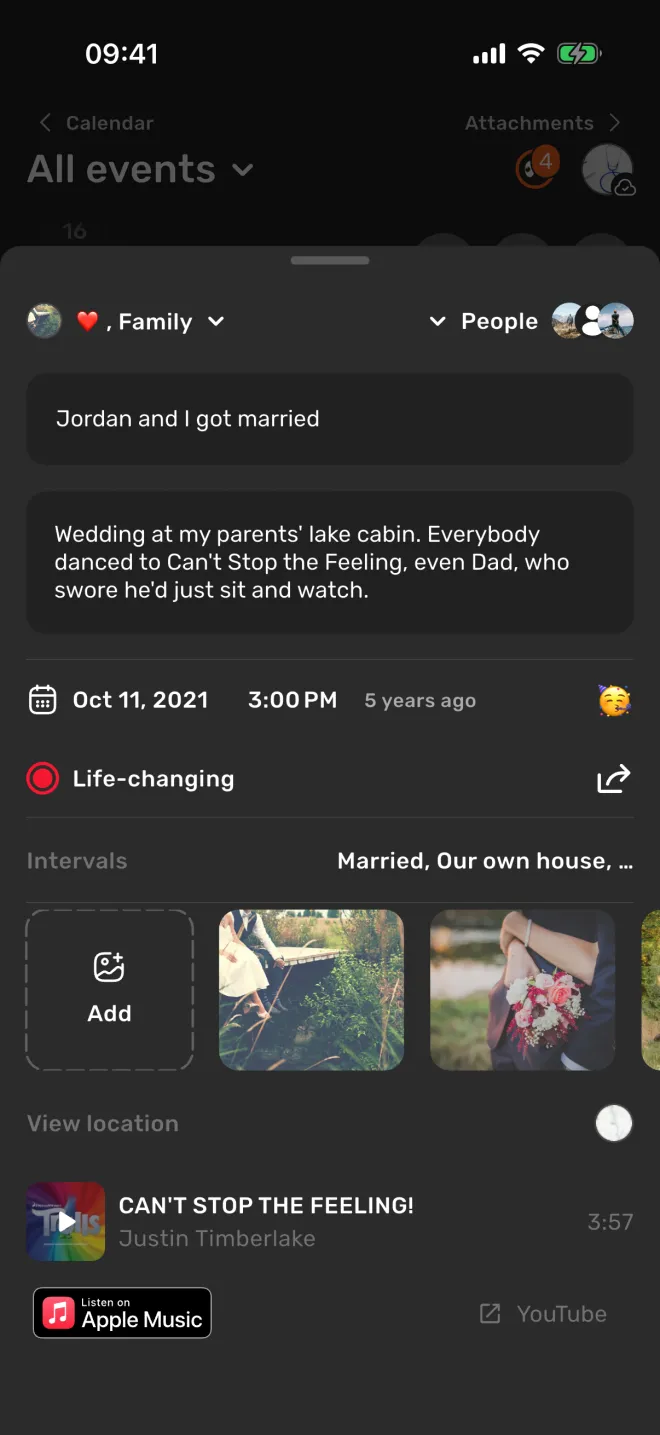
Tap an event on the timeline to open it. In the open event you can:
- change the title and write what happened in Event description;
- change the date, the time, the importance and the mood;
- add or remove tags and people;
- see the intervals the event falls into;
- add photos, a location or music, where they are available to you;
- share the event as a card with the share button.
There is no save button in an open event: changes are saved automatically. Depending on your version and screen size, the event opens as a sheet over the timeline or in a panel beside it.
How to edit, duplicate or delete an event
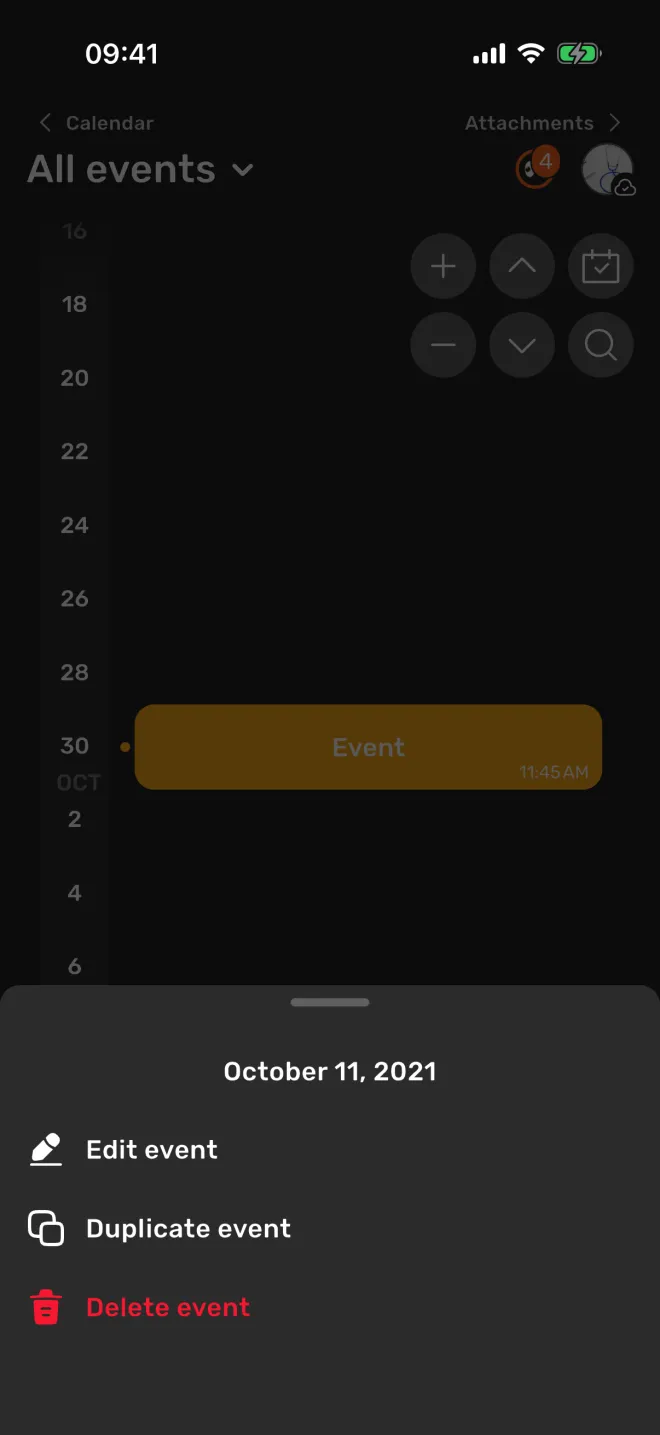
To edit, tap the event and change what you need. For the other actions, press and hold the event on the timeline. A menu opens with the date of the event and three options:
- Edit event opens it, the same as a tap;
- Duplicate event adds a copy that you can then change, handy for a series of similar days;
- Delete event removes it.
Delete event works straight away, without a second question, so check that you are holding the right event first. Deleting an event does not delete its tags, people or intervals; they stay for your other events.
Troubleshooting
The check mark stays grey
The title is empty. Type at least one character that is not a space.
I cannot go back far enough in the calendar
The calendar view of the date sheet starts at 1900. Switch to the scroll wheel with the button at the top right of the sheet; it has no such limit.
My new event is not on the timeline
Check the title at the top of the timeline. If it shows a tag or an interval name instead of All events, the timeline is filtered and only matching events are shown. Tap the title and choose All events. When exactly one tag is selected, a new event gets that tag by default. See filters.
The event is grey
Its date is in the future. Open it and check the date and year.
There is no tag or mood option in the form
That detail is turned off. Turn it back on in Settings → Event details.
Add events in the Lifely web app
Open app.lifely.page and sign in with the same account as on your phone. In a wide window, click Create event in the side menu; in a narrow window, use the + button as on a phone. A keyboard makes it easy to write long descriptions of old memories.
The mobile app is the main experience; some features differ on the web.
Frequently asked questions
Can I add a memory from before I installed Lifely?
Yes. When you create an event, set its date to any day in the past, years or decades ago. The timeline reaches back to your earliest event.
Can I mark a date as approximate?
Lifely has no separate approximate-date setting: every event is on one day. Pick your best guess, leave the time empty and write that the date is approximate in the description. You can change the date later.
Can I add events in the future?
Yes, up to 100 years ahead. Until the day comes, a future event appears in grey with a thin stripe in its importance colour.
Is the time required?
No. Only the title is required. Without a time, the event belongs to the whole day. Tap Add time in the date sheet to set one.
How do I delete an event?
Press and hold the event on the timeline and choose Delete event. It is deleted straight away, without a second question. Its tags, people and intervals stay.
Can I add events in the web app?
Yes. Open app.lifely.page, sign in with the same account as on your phone and click Create event in the side menu, or use the + button in a narrow window.
Add your first memory
Lifely is a personal life timeline and diary for iPhone, iPad, Android phones and tablets, Macs with Apple silicon and the web. Start with one moment you never want to forget, then zoom out to see it beside the rest of your life.


Free download with in-app purchases and ads. Some features require Premium. Your local store and the app show current availability and prices.