 Lifely
 Lifely guide
How to move around your Lifely timeline and find an old event
Scroll the timeline up and down to move through time, and pinch to zoom from decades down to single days. The round button with up and down arrows (⇕) at the top right opens the zoom buttons, arrows to the previous and next event, a button back to today and search. To find an old event, search for a word from its title or description, or tap All events at the top to show only some tags or intervals.
The timeline is the main screen of Lifely in the iPhone app, the Android app and the web app.
Screenshots show the recent mobile interface. Older versions and the browser can have different controls; see the web instructions.
What is on the timeline screen
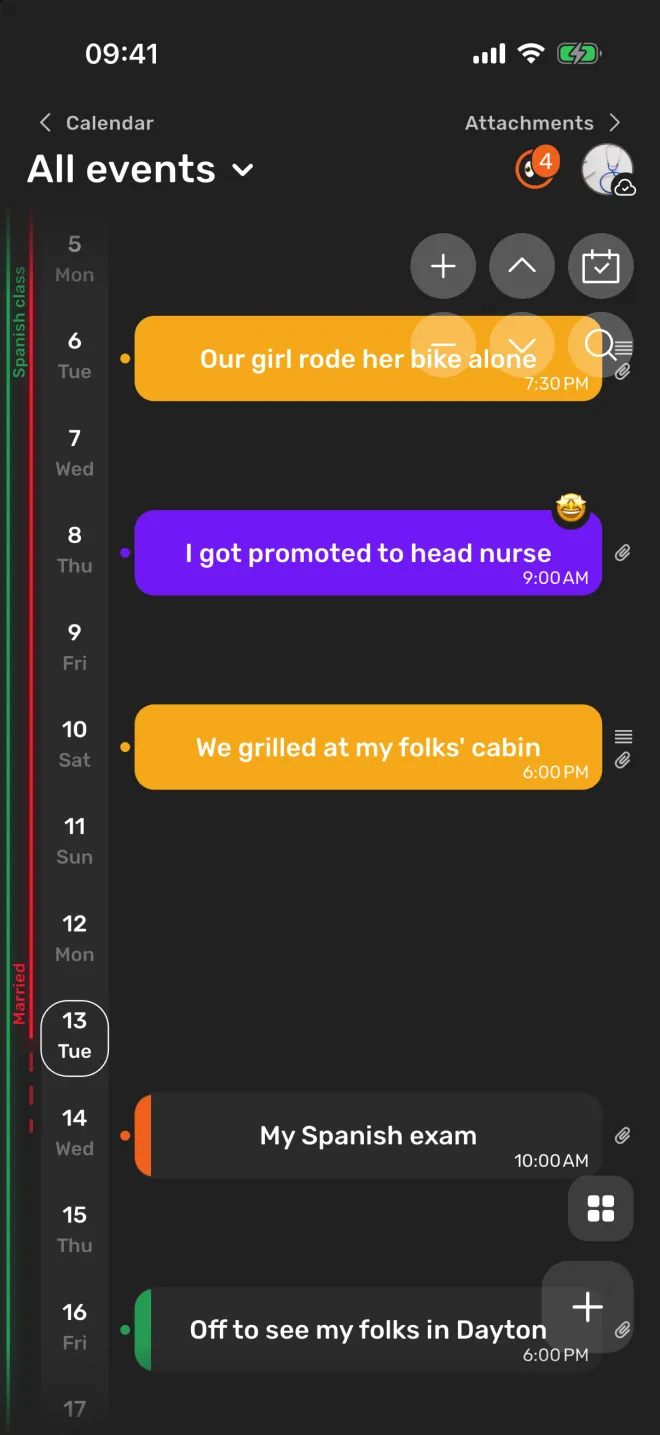
- The date stripe, a narrow column of years, months or days beside your events. Tap a date on it to start a new event on that day.
- Events, as cards in the colour of their importance, with the time and the mood if you set them. Small icons beside a card show that it has a description or attachments.
- Interval stripes at the left edge: the chapters of your life, with their names written along them.
- The title at the top, “All events”, which opens the filters.
- On a phone, Calendar at the top left and Attachments at the top right. You can also swipe sideways: to the right for the life calendar, to the left for attachments.
Older events are at the top and newer ones below. If you prefer the newest at the top, turn on Reverse timeline scrolling in Settings → Timeline settings. Timeline text size is there too.
Scroll and zoom
- Move through time: drag the timeline up or down. A quick flick keeps it moving. In a browser, use the mouse wheel or two fingers on a trackpad.
- Zoom: pinch with two fingers. Spread them to zoom in towards days, pinch them together to zoom out towards your whole life. In a browser, the available zoom controls depend on the version; see the web instructions.
- Zoom with buttons: handy in a browser or with one hand. Tap ⇕, then + or −. A tap zooms one step; holding the button zooms smoothly until you let go.
While you scroll, the month and year you are looking at appear at the top of the timeline.
The navigation buttons in recent mobile versions
The round button with up and down arrows, ⇕, at the top right of the timeline opens a small panel of buttons. The buttons hide while the timeline moves and come back when it stops.
| Button | What it does |
|---|---|
| + and − | Zoom in and out around the middle of the screen |
| ↑ and ↓ | Jump to the nearest event above or below; dimmed when there is none |
| Today | Go back to today; it takes the place of ⇕ while the panel is open |
| Search | Find an event by its words, see search |
What you see at each scale
- Your whole life or decades: the stripe shows years. There is room for fewer cards, so the most important events keep their cards and the others become small dots on the line. Give your milestones a high importance and they stay visible when you zoom out.
- A few years or months: months appear between the years, and more events get cards.
- Weeks and days: each day has its number and weekday, today is circled, and every event of a busy day has its own card.
The timeline starts at your earliest event or interval and runs a little past your latest event, so there is room for future events.
Find an event with search
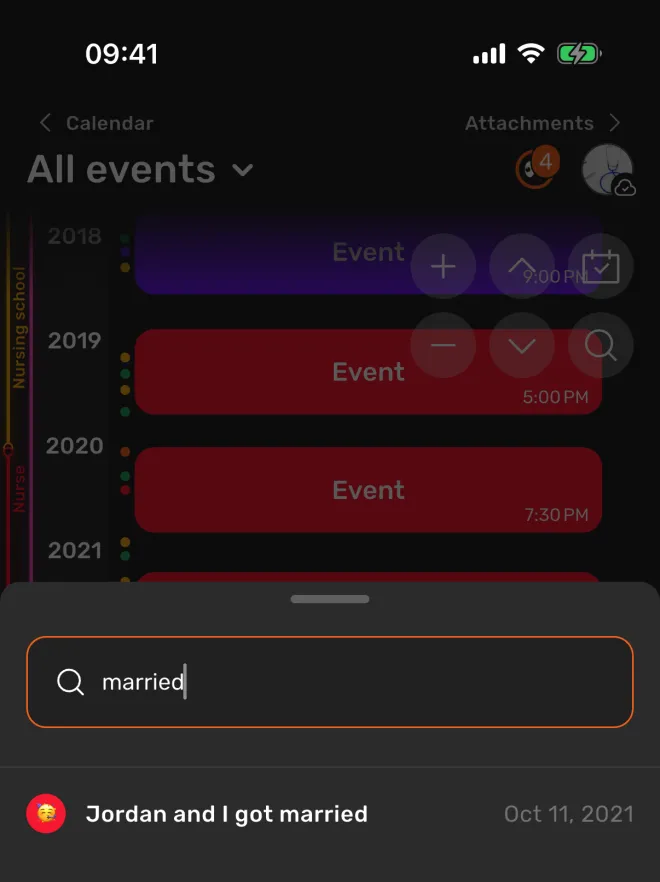
- Open search. Tap the magnifying glass. In recent mobile versions it is inside the ⇕ menu at the top right; in older versions it can be a separate button.
- Type a word. Search looks through the titles and descriptions of your events, ignores upper and lower case and also finds part of a word: “graduat” finds “Graduation day”.
- Tap a result. Results are listed newest first, with their dates. The timeline jumps to the event you tap.
Active filters can affect search results. Choose All events to clear the timeline filter. If a known entry still does not appear in search, see troubleshooting.
Show only some events: tags and intervals
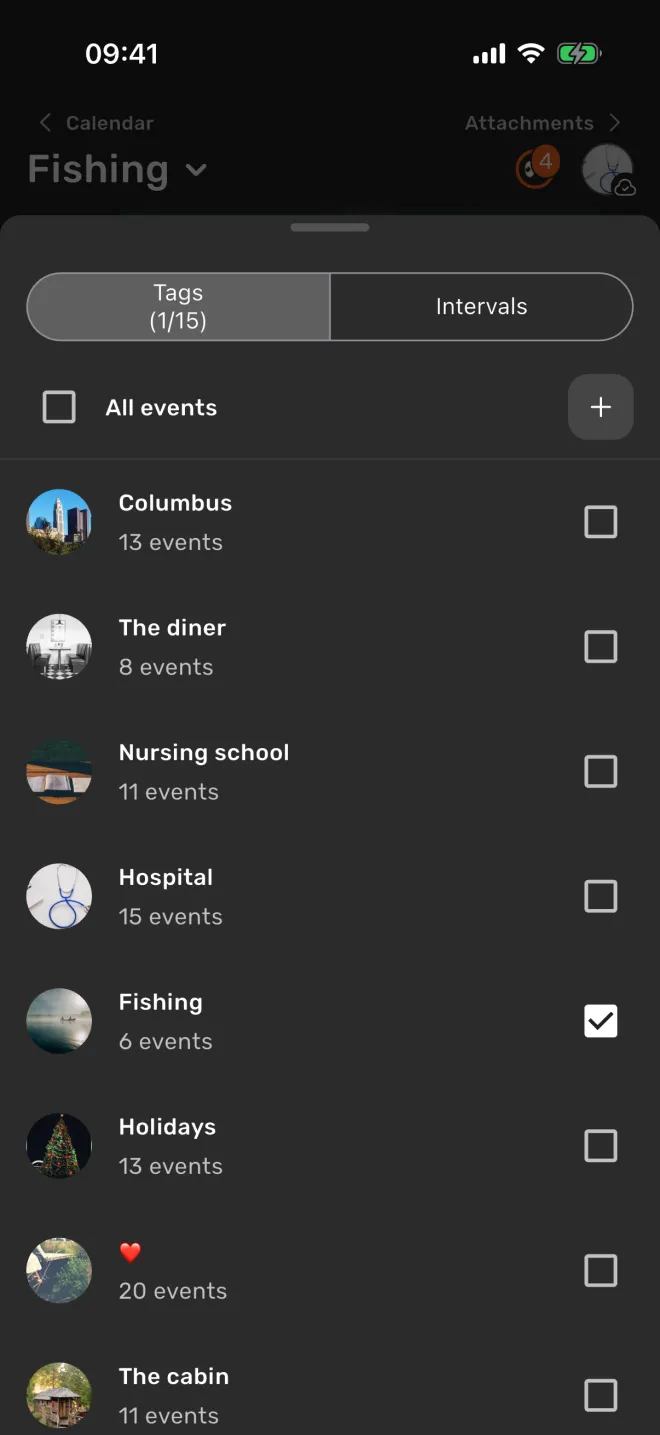
- Tap All events at the top of the timeline.
- Choose Tags or Intervals at the top of the sheet.
- Tick one or more boxes. With tags, the timeline shows the events that have any of the chosen tags. With intervals, it shows the events whose dates fall within the chosen intervals. The title of the timeline changes to the names you chose.
- To see everything again, open the sheet and tick All events.
Tapping the name of a tag or an interval in the sheet, rather than its box, opens its page with all of its events. While tags are selected, interval stripes are hidden from the timeline.
Other ways into your past: the page of a person lists every event with them, the page of a tag lists its events, and the life calendar shows your life in years and weeks.
Example: find a trip from years ago
Maria remembers a trip to Lisbon but not the year.
- She taps ⇕, then search, and types “lisbon”. Two events come up: “Weekend in Lisbon” from 2014 and “Lisbon again, with Tom” from 2019.
- She taps the 2014 event. The timeline jumps to it, and she zooms out with − to see what else happened that year.
- To see all her trips, she taps All events, chooses Tags and ticks “Travel”. Now only her trips are on the timeline, from the first to the latest.
Troubleshooting
I cannot see the zoom buttons or search
Tap the round ⇕ button at the top right. If it is not there, stop scrolling for a moment: the buttons hide while the timeline is moving.
An event I added is missing
Check the title at the top. If it is not All events, a filter is on. When you are zoomed out, a less important event can also be a small dot instead of a card: zoom in, or use search.
Search finds nothing
Try a shorter part of a word, and check the active filters. Search looks at titles and descriptions, not at tag names, people or places. Some versions may omit events outside your recorded intervals from search results, even when the timeline is set to All events. This does not mean the entry has been deleted: browse the timeline around its date, or open its tag or person page if you linked it to one.
Pinch does not work in my browser
If your web version has + and − buttons, use them with a mouse. If it does not, use touch zoom on your phone; the web and mobile interfaces can differ.
The timeline in the Lifely web app
In a browser at app.lifely.page, scroll with the mouse wheel or trackpad. In a wide window, use the side menu to open other parts of the app. The web app can have an earlier interface than the mobile app: search may be a separate magnifying-glass button, and the + and − zoom buttons may not be present. If your version offers those buttons, use them to zoom. For touch zoom, use two fingers on your phone. Browser trackpad gestures are not available consistently, so do not rely on them.
The mobile app is the main experience; some features differ on the web.
Frequently asked questions
How do I zoom out to see my whole life?
Pinch the timeline with two fingers, or tap the ⇕ button at the top right and then −. Zoomed out, the most important events keep their cards and the others become small dots.
How do I find an old event?
Tap the magnifying glass (inside ⇕ in recent mobile versions), and type a word from the event title or description. Tap a result to jump to it. If a known event does not appear, browse the timeline by date; some versions may omit entries outside your recorded intervals from search.
Can I show only some events on the timeline?
Yes. Tap All events at the top of the timeline and tick tags or intervals. Tick All events to see everything again.
How do I get back to today?
Tap ⇕ at the top right, then the today button that appears in its place.
Can I put the newest events at the top?
Yes. Turn on Reverse timeline scrolling in Settings → Timeline settings.
Does the timeline work in a browser?
Yes, at app.lifely.page with the same account. Scroll with the mouse wheel or a trackpad. The web interface can be older than the mobile one; use + and − to zoom if those buttons are available in your version.
See your whole life on one timeline
Lifely is a personal life timeline and diary for iPhone, iPad, Android phones and tablets, Macs with Apple silicon and the web. Add a few memories, then zoom out and look at them together.


Free download with in-app purchases and ads. Some features require Premium. Your local store and the app show current availability and prices.