 Lifely
 Lifely guide
Revisit your past with Lifely memories
Lifely memories bring recorded events back as story cards. Open Memories, browse the cards and choose Go to event to return to the original entry. Some cards instead show facts calculated from your birthday. Those are estimates, not experiences you recorded or measurements of your body.
How to open and browse memories
- Start on your timeline. On a compact phone layout, the memories indicator is a ring near your profile picture and can show a count of unseen memories. Select that ring to open memories. On a wide layout, choose Memories in the overview beside the timeline.
- Open the memories. Cards fill the screen, with progress bars across the top. The indicator may include a count of unseen memories; it is not a count of all events in your diary.
- Move through the cards. Tap or click the right side for the next card and the left side for the previous card. Cards also advance automatically. Press and hold to pause while reading; release to continue.
- Return to an entry. On an event memory, choose Go to event or select the event tile. The original entry opens so you can read it or add details.
- Leave memories. Use the close control. On a phone, a downward swipe also closes the story view.

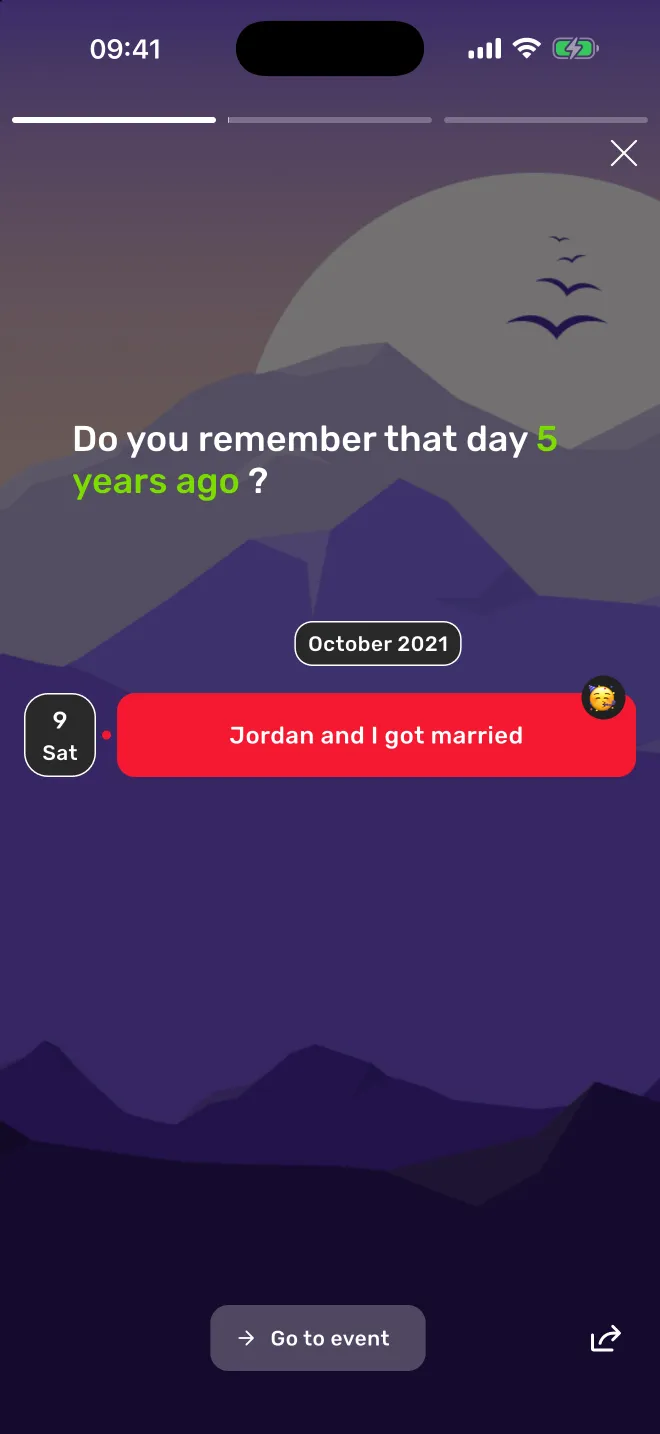
Past-event memories and calculated facts
- Past-event memory
- A card referring to an event you recorded, such as a trip, a graduation or an ordinary afternoon worth keeping. Its title and date come from the original entry. Go to event takes you back to that entry.
- Calculated fact
- A card about time since your birthday, such as an estimated number of breaths or heartbeats. Lifely calculates these using elapsed time and fixed assumptions. They do not come from a sensor, a health record or your event history.
A calculated card does not mean Lifely knows what happened on that date. An event memory, in turn, does not create a second copy of your event. It is a way to return to the existing record.
Memories can bring back moments from different times in your past. The selection depends on the past entries available and the app version. Do not expect every event to appear, a fixed number of cards or a particular delivery time.
Edit the remembered event
Choose Go to event, then update the original entry: add a description, correct its date or attach a photo. Read the event guide for editing steps and the attachment guide for photos, places and music. The memories screen itself is not a separate diary editor.
Share a card
The share control prepares an image of the displayed memory. Check the image before sending it: an event title or date may be visible. Sharing an image is different from inviting someone into your diary. The phone uses its available sharing options; the browser may offer a downloaded image.
Try it with a moment from your past
A small example
Create an event called Our first weekend by the sea on the date it happened. Add a sentence about what you remember and, if you want, a photo. When that event appears in Memories, choose Go to event and add one more detail. If it has not appeared, you can still find it directly on the timeline.
Record real past dates rather than putting every old story on today's date. Dates give Lifely the context for returning to a moment later. Memories complement browsing; use timeline navigation and search when you want a particular entry now.
If a memory is missing or looks wrong
I cannot find the memories control
Open Profile → Settings → Event details and check that Memories is enabled. This setting can hide the home memories entry. If it is enabled but there are no cards yet, check the past entries in your diary and allow the page to finish loading.
I only see calculated cards
Check that your diary contains past events. Add a few genuine past moments and confirm that the originals are visible on your timeline. The presence of past entries does not guarantee that each one will appear in the current selection.
There are no cards
Give the page time to finish loading. If a diary you already use elsewhere looks empty here, check that you are using the same account and follow the sync guide. An empty memory view does not by itself mean the underlying events were deleted.
The date, title or estimated fact is wrong
For an event card, open the original entry and check its date and title. For a birthday-based fact, check your date of birth in Profile → Settings → Edit profile. Estimates remain estimates even with the correct birthday.
I want to revisit an event that is not among the cards
Open the timeline and browse to its date, or use its tag or person. Memories show a selection; the timeline is the place to explore your full diary.
Use memories in the web app
Open app.lifely.page with the same sign-in account as on your phone. On a wide screen, look for Memories beside the timeline; compact layouts use the memories indicator. Click a card's right or left side to move through the selection, or choose Go to event to return to an entry.
The browser and mobile app may be on different versions, so the position of the entry control and the available cards can differ. New entries must reach the other device before they can be used there.
Frequently asked questions
Does Lifely invent past events?
Event memories refer to entries already recorded in your diary. Calculated facts are a different kind of card, based on your birthday and fixed assumptions; they are not descriptions of events you experienced.
Why do I only see facts, not my past events?
Check that you have past entries and that they are visible on your timeline in the same account. Memories show a selection, so a particular entry may not appear among the current cards.
Can I edit an event from a memory?
Choose Go to event to open the original entry, then edit that entry. The memory is a link back to the record, not a separate copy of it.
Are heartbeat and breathing facts actual measurements?
No. They are estimates calculated from time since your birthday and fixed assumptions. They do not use health sensors or measure your body.
Will I get a fixed number of memories at the same time every day?
A fixed number or exact delivery time is not guaranteed. The cards depend on available past entries and the app version.
Can I open memories in the web app?
Yes. Sign in at app.lifely.page with the same account as on your phone. Use Memories in the wide-layout overview or the memories indicator on a compact layout.
Continue with your own diary
Lifely is a personal life timeline and diary for iPhone, iPad, Android phones and tablets, Macs with Apple silicon and the web. Start with one moment you want to keep, then use the guides when you want to add more context or explore your past.


Free download with in-app purchases and ads. Some features require Premium. Your local store and the app show current availability and prices.
Related guides: Create and edit events · Navigate your timeline · Add photos, places and music