 Lifely
 Lifely guide
How to add people to your memories in Lifely
Open an event, tap People, select the people who were there and tap Done. To create a person, open People from the menu and tap New person: a name is enough, a photo is optional. Each person gets a page with every event you shared. A person in Lifely is a private label in your own diary: adding someone does not invite them, notify them or give them access to anything.
People work in the iPhone app, the Android app and the Lifely web app, with the same account.
How to create a person
- Open People. On a phone, tap the menu button above the + button on the main screen and choose People. People is also among the tiles of your profile. In the web app or on a tablet with a wide window, choose People in the side menu.
- Tap New person.
- Write the name the way you think of them: “Mum”, “Jordan”, “Grandpa Joe”. It is a label in your own diary, not an account.
- Add a photo if you like, then tap Done. Without a photo, the People page shows their initials.
Saving a person with a photo needs an internet connection, because the photo is uploaded to your account. The free version has a limit on how many people you can add; Lifely Premium removes it. The app shows the current limit.
How to add a person to an event
- Open the event, or start a new one with +.
- Tap People at the top right of the event.
- Tap the people who were there. You can choose several; the chosen ones get an orange frame. Once you have ten or more people, a search field appears: type the beginning of a name.
- Tap Done. The people now show next to People on the event. In an open event the change is saved by itself; in a new event, save it with the check mark.
Someone not on the list yet? Tap Add a new person in the same sheet. It takes you to the People page: create them there with New person, come back to the event and select them.
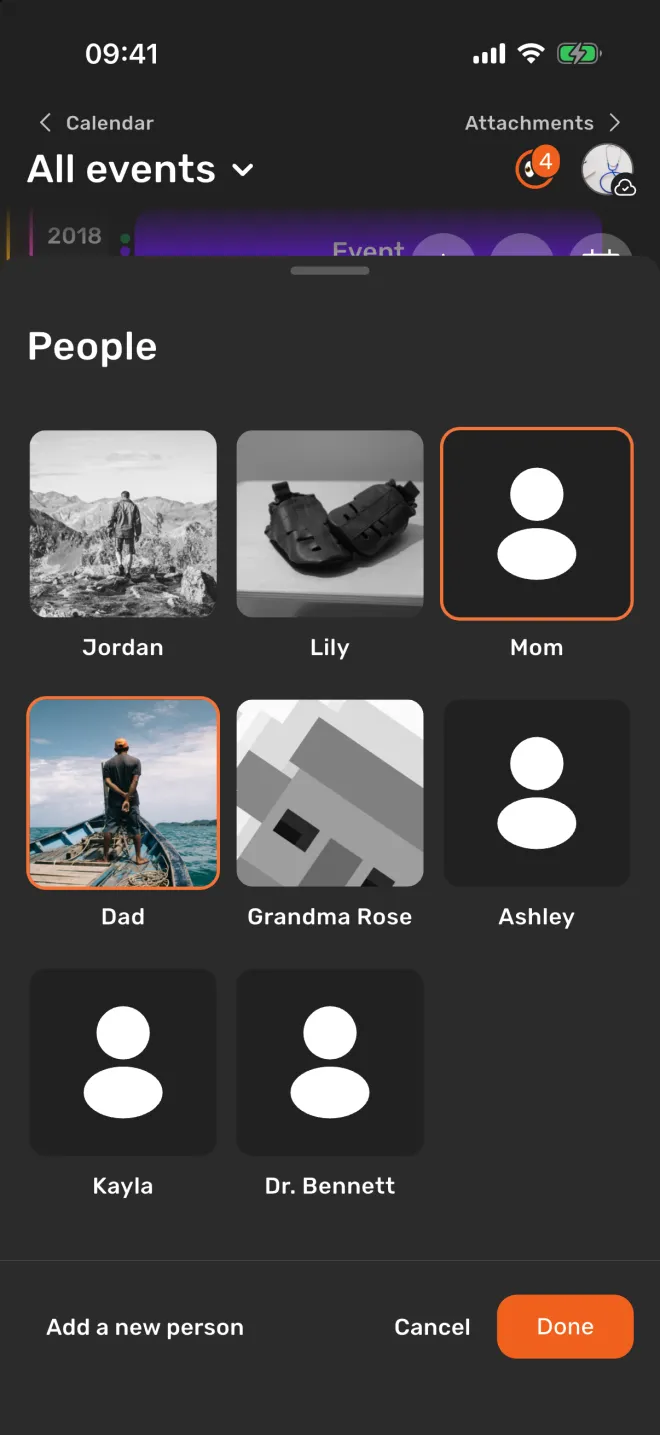
You can also work from the person’s side: on a person’s page, tap the pencil, then the events row, and select several past events at once. This is the quickest way to add someone to memories you recorded before you created them.
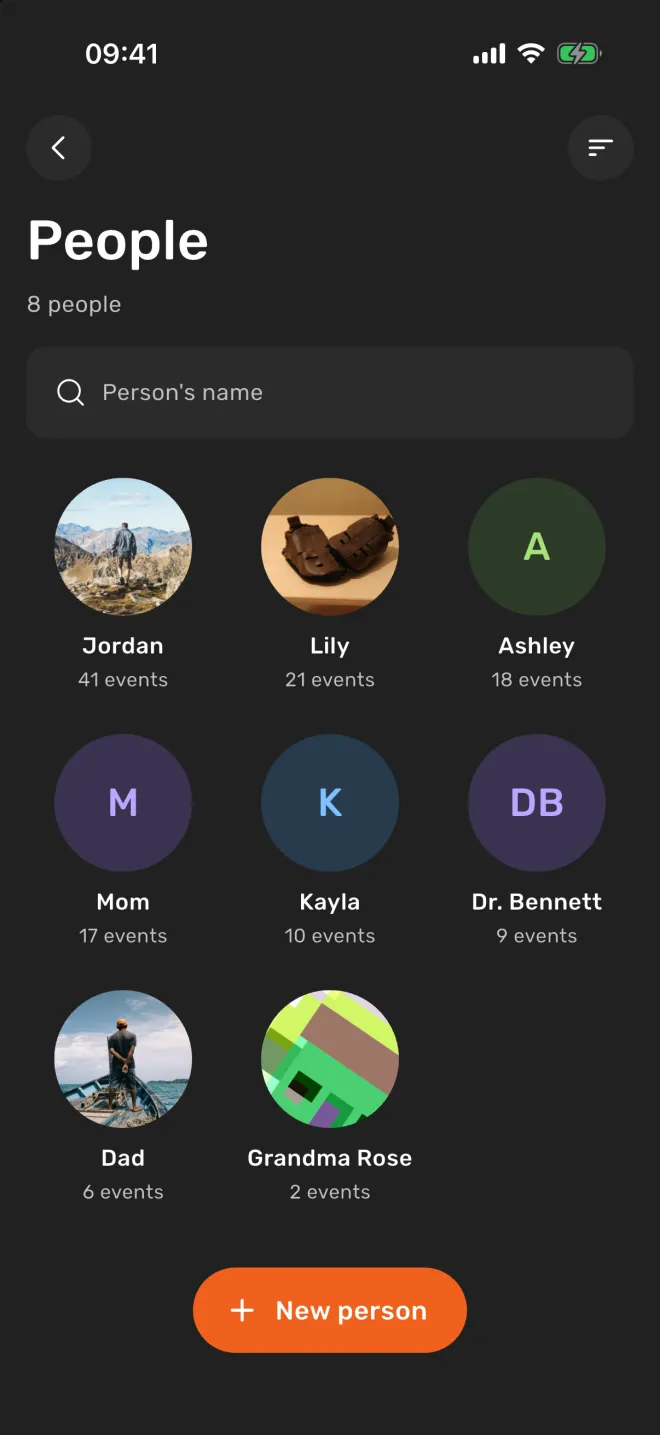
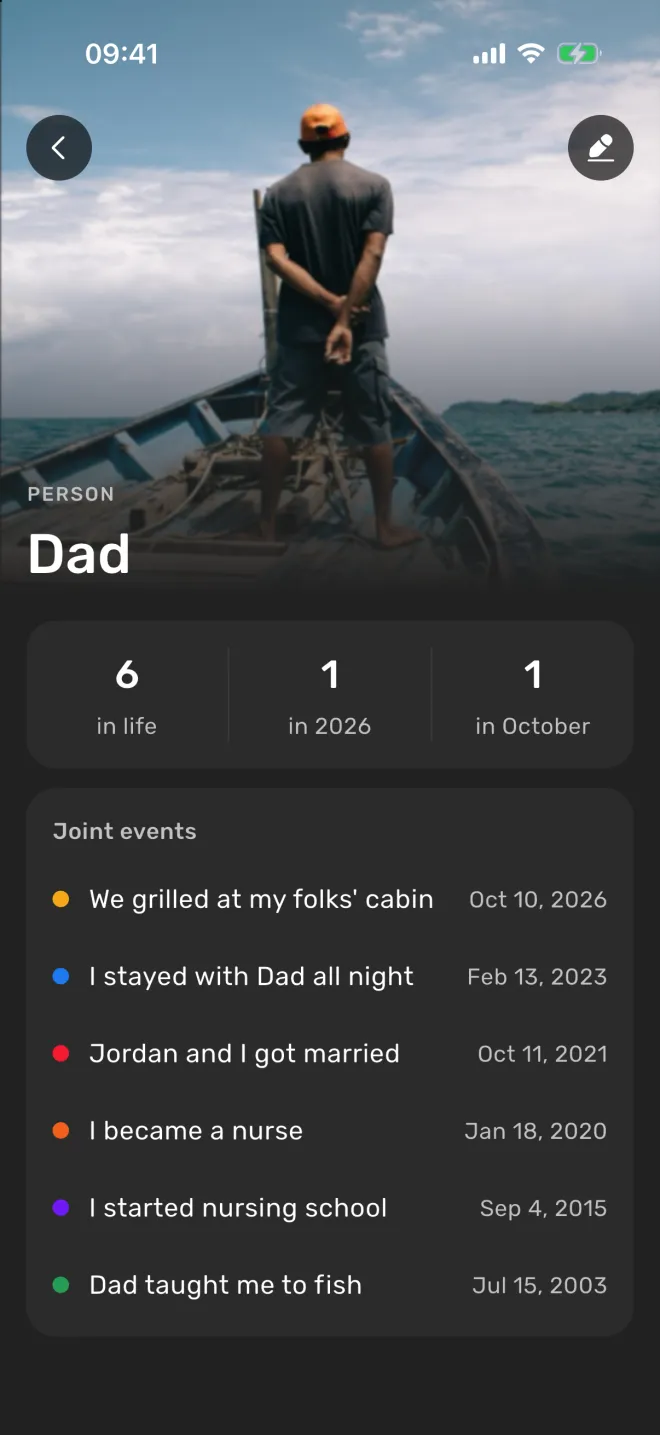
See every event with one person
Tap a person on the People page to open their page. It shows:
- their photo or initials and their name;
- how many events you share: in life, this year and this month;
- Joint events, the list of those events with their dates, newest first. Tap one to open it.
It is a simple way to reread a friendship or a family story from the first memory to the last. The People page itself lists everyone with the number of their events, and you can sort it by number of events or by name.
Example
Jordan has kept a Lifely diary for two years and wants a page about Dad.
- Jordan opens People, taps New person, writes “Dad”, adds a photo from the phone and taps Done.
- On Dad’s page, Jordan taps the pencil, then Add event, and ticks “Dad taught me to fish”, “Graduation day” and “We grilled at the cabin”.
- From now on, when Jordan adds a new memory with Dad, they tap People in the event and select him.
- Dad’s page now shows all those events in one list, and nobody else, including Dad, is told about it.
How to edit or delete a person
Open the person’s page and tap the pencil (Edit person). There you can change the name and the photo, change which events they are in, or tap Delete person. You can also press and hold a person on the People page to delete them.
Lifely asks “Are you sure you want to delete this person?” first. Deleting a person removes them from all events, but the events themselves stay.
To take someone off one event only, open the event, tap People, unselect them and tap Done.
Adding someone does not share anything with them
A person in Lifely is only a name, and a photo if you add one, inside your own diary. Adding someone to Lifely or to an event:
- does not invite them to Lifely and does not send them a message or a notification;
- does not give them access to your diary or to the events they are in;
- does not need their email, phone number or a Lifely account.
People are stored with the rest of your diary in your account, so they appear on all your devices. Your entries reach someone else only if you share them yourself, for example by sending an event card with the share button. See the privacy policy for how data is handled.
People, tags and intervals
A person answers “who was there?”. A tag answers “what kind of moment?”, such as travel or work. An interval answers “during which chapter of life?” and collects events by their dates. One event can have several people, several tags and fall into several intervals.
Troubleshooting
I cannot save a new person
If you added a photo, check your internet connection, or save the person without a photo and add it later. If New person shows a lock, you have reached the free limit for people.
A person is not in the list when I tap People in an event
Create them first on the People page (Add a new person takes you there), then come back to the event.
An event is missing from a person’s page
The person is not selected on that event. Open the event, tap People and select them.
People in the Lifely web app
At app.lifely.page, sign in with the same account as on your phone, and your people are there. In a wide window, People is in the side menu. A big screen is handy for adding one person to many old events at once from their page.
The mobile app is the main experience; some features differ on the web.
Frequently asked questions
Does adding someone to Lifely share my diary with them?
No. A person is a private label in your own diary. Lifely does not invite or notify them, and they get no access to your entries.
Does the person need a Lifely account or an email address?
No. A person needs only a name; a photo is optional.
How do I see all my memories with one person?
Tap the person on the People page. Their page lists Joint events, newest first, with counts for life, this year and this month.
What happens to events when I delete a person?
The events stay. The person is only removed from them.
Is there a limit on people?
The free version has a limit on how many people you can add; Lifely Premium removes it. The app shows the current limit.
Can I use people in the web app?
Yes. Open app.lifely.page, sign in with the same account and choose People in the side menu.
Keep the people who matter in your story
Lifely is a personal life timeline and diary for iPhone, iPad, Android phones and tablets, Macs with Apple silicon and the web. Add the people in your life to your memories and see every moment you shared, on one timeline.


Free download with in-app purchases and ads. Some features require Premium. Your local store and the app show current availability and prices.