 Lifely
 on every screen
Lifely for Windows
Lifely installs on your Windows PC straight from the browser and opens in its own window, with an icon in the Start menu and on the taskbar. Open app.lifely.page in Edge or Chrome, click Install, and sign in with the account from your phone: your whole timeline is there.
Your life timeline on your PC
Lifely is a life timeline and diary for iPhone, iPad, Android, Mac and the web. On Windows it lives in its own window, without tabs or an address bar: the menu on the left, your timeline in the middle, and on the right your recent events and the memories waiting for you.
Scroll, and the days glide past. Zoom out and the weeks become years. Click a moment and it opens right beside the timeline, with its photos, the people who were there and your note.
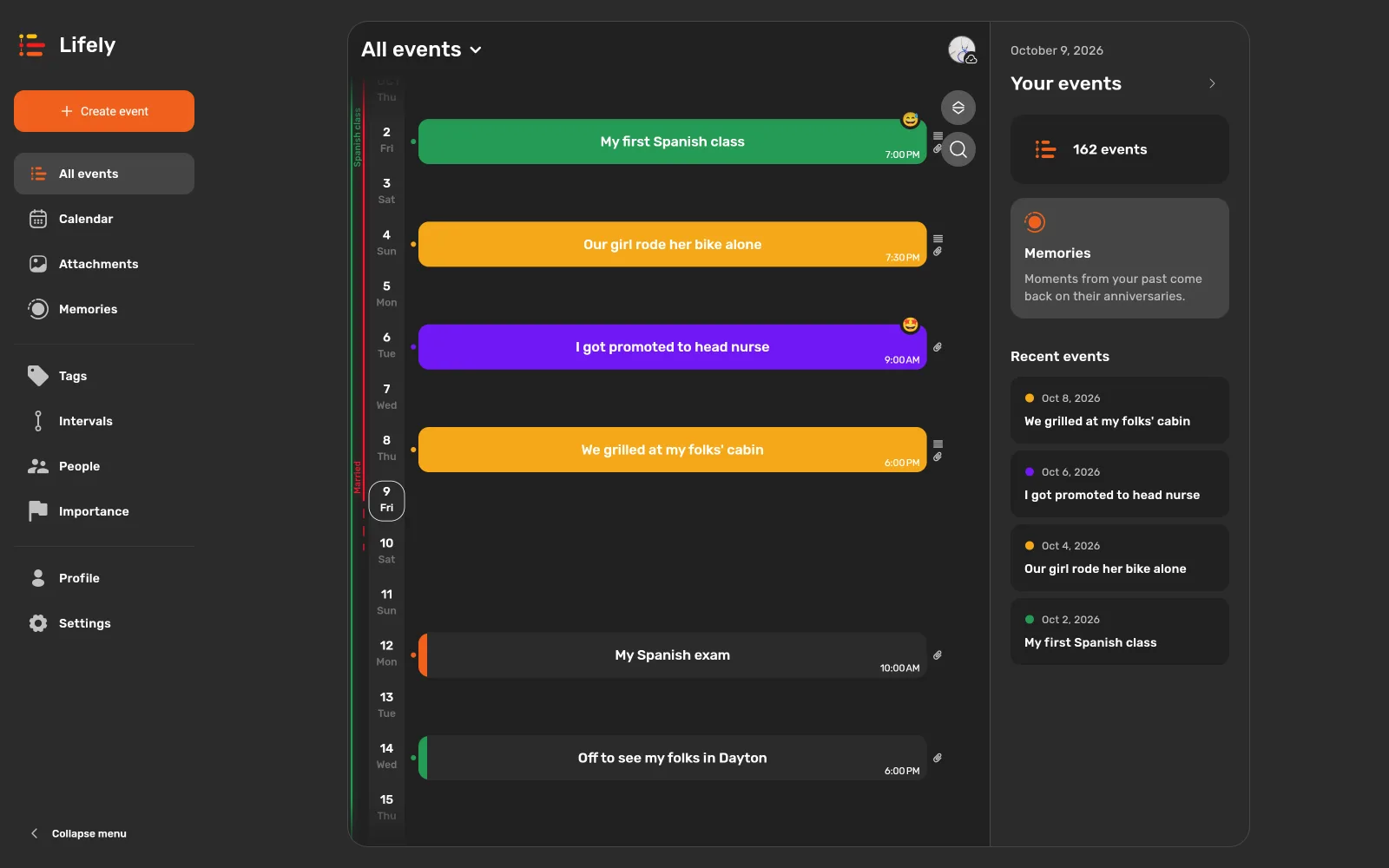
A keyboard makes the long stories easy. A quick note from your phone becomes the whole day, written in the evening at your desk. Resize the window and the layout follows. Need more room? Click Collapse menu at the bottom of the side menu.
Install Lifely with Microsoft Edge
Edge comes with Windows, so this is the quickest way.
- Open the web app. Go to app.lifely.page in Microsoft Edge and wait a moment for Lifely to load.
- Click the install icon. In the address bar, click App available. Install Lifely. Don't see it? Open the Settings and more menu (…), choose Apps, then Install Lifely.
- Click Install. Lifely opens in its own window.
- Choose where Lifely lives. Edge offers to pin it to the taskbar and Start and to put a shortcut on the desktop. Tick the ones you like and click Allow.
- Sign in the way you do on your phone. Choose Google or Apple, whichever you used before, and your diary loads. New to Lifely? Pick either one and add your first moment.
Install Lifely with Google Chrome
- Open the web app. Go to app.lifely.page in Google Chrome.
- Click the install icon. At the right end of the address bar, click Install Lifely. Or open the ⋮ menu and choose Cast, save, and share, then Install Lifely.
- Click Install. Lifely opens in its own window and appears in the Start menu.
- Pin it to the taskbar. Right-click the Lifely icon on the taskbar and choose Pin to taskbar. Next time, one click opens your diary.
- Sign in with the same Google or Apple account you use on your phone.
Lifely works on Windows 10 and Windows 11. It updates by itself: each time you open it, you get the latest version.
One diary on every screen
Jot down a moment on your phone while you're out. That evening, open Lifely on your PC: it's on your timeline, ready for photos and the full story. Lifely keeps one diary across iPhone, iPad, Android phones and tablets, Mac, Windows and the web, and syncs it through your account whenever your devices are online.
Use the same Google or Apple account everywhere. If a fresh entry hasn't shown up yet, the account and sync guide walks you through a quick check. Lifely also has a home on the Mac and on iPad and Android tablets.
Frequently asked questions
Is there a Lifely app for Windows?
Yes. Lifely installs on Windows 10 and Windows 11 from app.lifely.page as a web app. Open it in Microsoft Edge or Google Chrome and choose Install. Lifely then opens in its own window and appears in the Start menu, ready to pin to the taskbar.
Do I need the Microsoft Store?
No. You install Lifely straight from your browser. There is nothing to download, and the app takes almost no disk space.
Will my diary from my phone show up on Windows?
Yes. Sign in with the same Google or Apple account you use on your phone, and your events, people, photos and memories load into the window. Changes sync between devices while they are online.
Which browsers can install Lifely?
Microsoft Edge and Google Chrome both install Lifely as an app. In any other browser, open app.lifely.page in a tab and sign in to the same diary.
Does Lifely on Windows work offline?
Keep your computer online while you use Lifely on Windows. For writing moments without a connection, use the Lifely app on your phone: it saves them and sends them when you're back online.
What works differently from the phone app?
On Windows, Lifely runs the web version. Location, notifications and Lifely archive import and export are not available there, and Premium is purchased in the Lifely app on your phone, tablet or Mac. Your diary, timeline, people, photos and memories are all the same.
How do I update or uninstall Lifely?
Updates arrive by themselves: Lifely loads the latest version every time it opens. To remove it, open the Start menu, right-click Lifely and choose Uninstall. Your diary stays safe in your account.
Microsoft explains how to install and manage web apps in Edge, and Google does the same for Chrome.
Related guides: Use Lifely across devices · Explore your timeline · Lifely for Mac
Free to use, with in-app purchases and ads. Some features require Premium. The app shows current availability and prices.