 Lifely
 Lifely guide
See your life in years and weeks
Open Calendar to see your life from your birthday onward. In Years, select a year to explore its weeks, or press and hold a year to open its events. Select a week inside that year to see its entries. The separate Weeks tab gives an overview of your whole life.
How to explore the life calendar
- Open Calendar from the home screen. On compact layouts, use the Calendar link beside the timeline. Where swiping between home sections is available, a swipe right from the timeline also opens it. On wide layouts, choose Calendar from the side navigation.
- Start in Years. Each circle represents one year of your life. Select a year to open a view of that year's weeks.
- Open a week's events. Select a week within the year view. Lifely shows entries dated within that week.
- Open a whole year's events. Return to the year circles and press and hold a year. On a computer, click and hold. This opens the entries for that year directly.
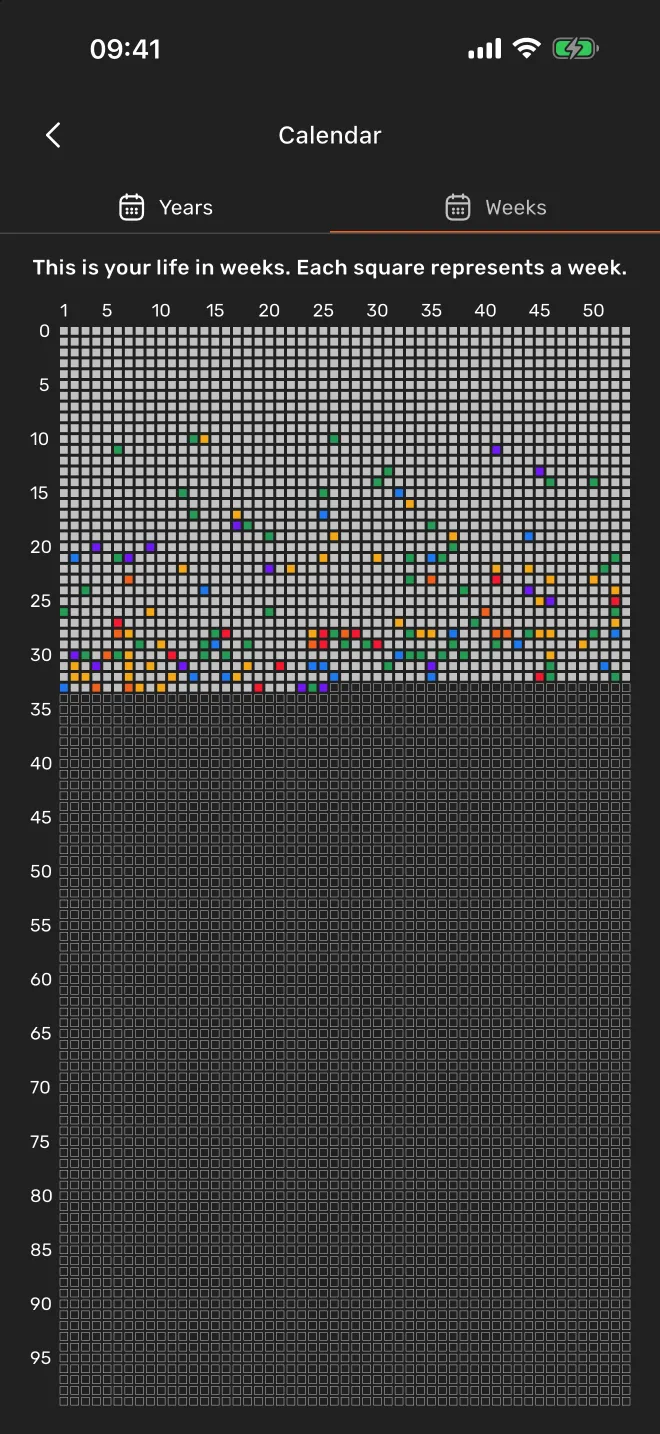
- See the whole-life overview. Choose the separate Weeks tab. Each small square represents a week and each row represents a year.
The Weeks tab is an overview: its small squares do not open event lists when selected. To open events for a particular week, use Years → select a year → select a week. Use the back arrow to leave a year view or the calendar.
What the dates, colours and moods mean
Your birthday sets the starting point
This is a life calendar rather than a January-to-December calendar. A life year starts on your birthday and ends at your next birthday. The weeks within it are counted from that starting date, rather than following standard calendar week numbers.
For example, if your birthday is in October, the year containing your thirtieth birthday continues into the following September. An event in January belongs to that same life year.
Importance gives an event-filled period its colour
When several events fall within a year or week, the event with the highest importance level determines the period's colour. That is why one especially important event can colour a year even when other entries have different colours.
A mood emoji, where shown, comes from the event selected to represent the period. It is not an average of all moods you recorded that year or week. Open the event list to see the individual entries rather than treating one circle as a complete summary.
Uncoloured periods and future outlines
An uncoloured past period means there is no recorded event contributing an importance colour there. It does not mean you did nothing during that time. Outlined future periods show time ahead; the grid is a fixed visual horizon, not a prediction of how long you will live. Future entries are easier to find on the timeline at day scale.
Try it with one year of your life
A birthday-to-birthday review
Think of a year when you moved to a new city. Open that life year in Years, then a week around the move. Add a missing moment through the timeline, with the date it actually happened, and return to the calendar. Use an interval such as Living in Lisbon if you also want to name the longer chapter.
Life calendar and intervals answer different questions. The calendar has fixed birthday-based years and weeks; an interval has the start and end dates you choose. An interval does not replace or recolour those calendar periods.
If the calendar does not look as expected
My events are in a different year from the one I expected
Check your birthday and the event dates. Remember that life years begin on your birthday, so they can span parts of two ordinary calendar years. If your birthday is wrong, open Profile → Settings → Edit profile and correct your date of birth.
A colour or mood does not match most of my entries
The colour comes from the highest-importance event; the mood comes from the event representing the period. Neither is a vote or an average. Open the year's or week's entries and check their importance and mood individually.
Tapping a square in Weeks does nothing
That whole-life grid is for viewing. Switch to Years, select the relevant year and then select a week to open its entries.
An event is missing on this device
First find the original entry on the timeline and verify its date. If it is only present on another device, follow the sync guide. The calendar cannot display an entry that has not reached the current device.
Use life calendar in the web app
Open app.lifely.page with the same account as on your phone, then choose Calendar. The birthday-based years, week views and whole-life overview work in the browser too. On a wide layout, use the side navigation; compact layouts place Calendar beside the timeline.
Select a year to open its weeks, or click and hold a year to open its events. The separate Weeks grid remains a viewing overview. A larger screen can make it easier to compare longer stretches of your life.
Frequently asked questions
Why do my life years not start on January 1?
Lifely starts each life year on your birthday. The weeks inside that year are counted from that birthday, so the view differs from a standard calendar.
What determines the colour of a year or week?
The event with the highest importance level in that period determines its colour. Open the period to see the individual events and their importance levels.
Is the mood on a period an average mood?
No. A mood emoji, where shown, belongs to the event selected to represent that period. It is not an average of every mood in the year or week.
How do I open the events of a week?
In Years, select a year, then select a week within that year. The separate whole-life Weeks tab is an overview whose small squares do not open event lists.
Does the future part of the grid predict my lifespan?
No. The calendar uses a fixed visual horizon to show time ahead. It is not a lifespan prediction.
Can I use the life calendar in the web app?
Yes. Open Calendar at app.lifely.page with the same account as on your phone. Select a year for its weeks, or click and hold a year to see its events.
Continue with your own diary
Lifely is a personal life timeline and diary for iPhone, iPad, Android phones and tablets, Macs with Apple silicon and the web. Start with one moment you want to keep, then use the guides when you want to add more context or explore your past.

Free download with in-app purchases and ads. Some features require Premium. Your local store and the app show current availability and prices.
Related guides: Navigate your timeline · Add past events · Describe life chapters with intervals